iPhone mockup generator with every setting explained
This iPhone mockup generator turns a screenshot into a framed phone image in a few seconds. Upload a file, pick one of seven iPhone models and a color, then set the background, shadow, angle and canvas. The live preview updates as you go, and the export arrives as PNG, WebP or JPG at up to 3840 pixels.
By The Bezelyard team (Product and testing). Last updated .
How to use the iPhone mockup generator, step by step
- Upload a PNG, JPG or WebP screenshot, or start with the sample screen.
- Choose a model from the Device list and click a color swatch.
- Pick a background preset, then fine tune it with Color 1, Color 2 and Style.
- Click an angle preset, or drag the Turn, Lean and Rotate sliders.
- Set the canvas, shadow, space around, screenshot fit and glare.
- Pick quality and format, then press Export mockup.
The live preview is always free, and you get 3 free HD exports a day with a small mark. See the pricing page for clean 4K exports, or read how we test every frame.
How the iPhone mockup generator builds an image
In general, two parts do the work. A live preview in your browser redraws the phone on every click. It shares the frame shapes and the perspective math with our server, so the download matches the preview. Then, when you press Export mockup, the server places your screenshot at the native size of the screen.
Only after that does it bend the device and add the shadow and background. As a result, small text stays sharp even at a strong angle, since the screen never shrinks before the turn. We tested this with our demo app screen at 1206 x 2622 and a 30 degree turn, and the labels stayed readable in the HD file. Also, the server keeps nothing: your image lives in memory for one export only.
Devices and colors you can pick
The iPhone group lists seven frames: 17 Pro, 17 Pro Max, 17, Air, 16 Pro, 16 and 15. Each one follows Apple's published screen size. For instance, the 17 Pro Max takes 1320 x 2868 pixels, the Air takes 1260 x 2736, and the 16 and 15 take 1179 x 2556. So a capture from your own phone lands at full resolution.
Every model also has its own color set. The 17 Pro offers Cosmic Orange, Deep Blue and Silver, while the 16 Pro uses four titanium shades. In the tool, the Air comes in Sky Blue, Light Gold, Cloud White and Space Black. In addition, the Portrait button next to the swatches flips any phone to landscape. Beyond iPhone, the same list holds an Android phone, two iPads, two MacBooks, a Windows laptop and a browser window.
Backgrounds, angles, shadows and canvas sizes
Eight background presets sit in one row: Studio, Dusk, Lagoon, Peach, Mint, Graphite, Paper and Transparent. After you pick one, tune it with Color 1, Color 2 and Style. The styles are Solid, Gradient, Spotlight and Mesh. Next come six angle presets: Flat, Turn left, Turn right, Lean back, Hero angle and Tilted. For full control, the Turn slider goes to 40 degrees each way, Lean to 30 and Rotate to 20.
Similarly, shadows come in four types: None, Soft, Floating and Crisp. The canvas menu sets the shape of the image. Options are Fit device, Square 1:1, Portrait 4:5, Story 9:16, Wide 16:9 and App Store 1290 x 2796. Then the Space around slider adds 0 to 35 percent of margin. Finally, Screenshot fit chooses between Fill the screen and Show it whole, and a checkbox adds a soft screen glare.
Export quality, formats and what each one costs
Quality has three steps. HD gives 1600 pixels on the long side and is free 3 times a day, with a small corner mark. 2K gives 2560 pixels, 4K gives 3840, and each of those costs one credit with no mark. For a Keynote slide or a landing page hero, 2K is plenty, while 4K suits print or a large press kit image.
In addition to quality, you pick a format: PNG, WebP or JPG. PNG and WebP keep a transparent background, so the iPhone mockup generator hides JPG when you pick Transparent. Credits come in a pack of 25 for $6.99, they never expire, and a failed export never uses one. Still, try the preview first, since it costs nothing and shows the exact result.
iPhone mockup generator options at a glance
| Option | Choices |
|---|---|
| iPhone frames | 17 Pro, 17 Pro Max, 17, Air, 16 Pro, 16, 15 |
| Other devices | Android phone, iPad Pro 13, iPad Air 11, MacBook Pro 14, MacBook Air 13, Windows laptop, browser |
| Background styles | Solid, Gradient, Spotlight, Mesh, Transparent |
| Angle range | Turn 40°, Lean 30°, Rotate 20° each way |
| Shadows | None, Soft, Floating, Crisp |
| Canvas sizes | Fit device, 1:1, 4:5, 9:16, 16:9, App Store 1290 x 2796 |
| Export sizes | 1600 px free, 2560 or 3840 px per credit |
| Formats | PNG, WebP, JPG |
IPhone mockup generator tested with a real screenshot
We rendered this image with the same code the tool on this page uses, from a demo app screenshot we drew ourselves. So the picture and the numbers below come from that run, not from a stock photo.
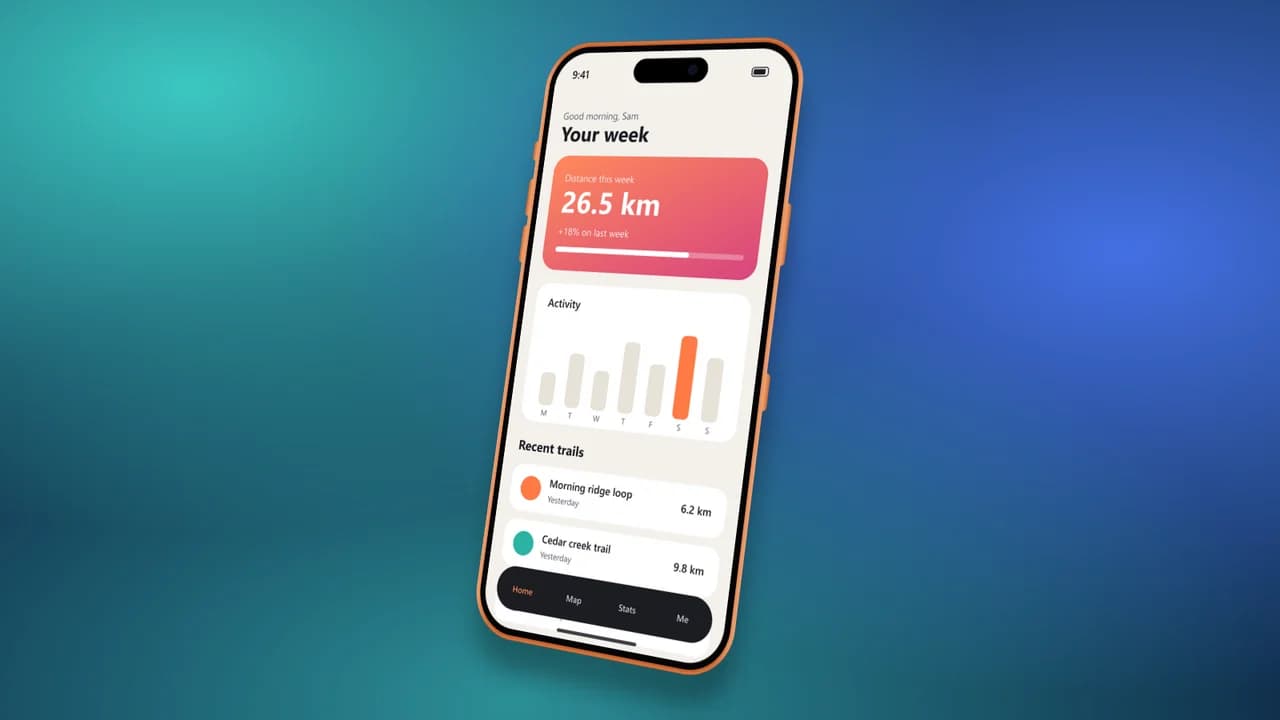
- Test input
- phone-app.png (1206 x 2622 px, our own demo app)
- Output
- iPhone 17 Pro mockup, 1600 x 900 px PNG
- Device
- iPhone 17 Pro
- Export size
- 1600 x 900 px
- Angle
- 30° turn, 8° lean
- Background
- mesh
- File size
- 658 KB
- Render time
- 228 ms
How we check exports: a script renders every device, compares the screen area with the published resolution, and we look at each frame at full size. More on the about page.
IPhone mockup generator FAQ
How do I make an iPhone mockup online?
Upload a screenshot here, pick a model and a color, set a background and an angle, then export. It all runs in the browser, with no app to install.
Can the iPhone mockup generator make App Store screenshots?
Yes. Pick the App Store 1290 x 2796 canvas, which matches one of the 6.9 inch sizes App Store Connect accepts. Then add your own headline in a design app.
Does it work with Android or iPad screenshots?
Yes. The same tool has an Android phone, iPad Pro 13, iPad Air 11, two MacBooks, a Windows laptop and a browser window.
Can I make a video or a hand held scene?
No. The generator makes still images of framed screens. For animated previews or lifestyle photos, use a video editor or a stock photo mockup.
Is my screenshot safe in the generator?
Yes. The server reads it into memory, renders the export and then drops it. We never store, share or train on your images.