iPhone screen mockup that fits your screenshot
An iPhone screen mockup works best when the screenshot matches the phone's pixel size. For an iPhone 16 Pro, that means 1206 by 2622 pixels. Drop the file, choose Fill the screen or Show it whole, and pick a background. Then the frame adds the rounded corners and the Dynamic Island on top.
By The Bezelyard team (Product and testing). Last updated .
How to fit a screenshot in an iPhone screen mockup, step by step
- Take the screenshot on the device you want to show, here an iPhone 16 Pro at 1206 x 2622.
- Drop it on the tool and check that the top of the image sits under the Dynamic Island.
- Under Screenshot fit, pick Fill the screen for a native capture, or Show it whole for odd sizes.
- Choose a light background for a dark mode screen, and tick Add a soft screen glare if you like.
- Export the mockup as a PNG at HD, 2K or 4K.
The live preview is always free, and you get 3 free HD exports a day with a small mark. See the pricing page for clean 4K exports, or read how we test every frame.
Fill the screen or show it whole
The Screenshot fit menu has two options. Fill the screen scales your image until it covers the whole display, then trims any extra from the bottom or the sides. So the top of the app, with its status bar and title, always stays in view. That is the right pick for a real capture from the phone.
Show it whole, by contrast, does the opposite. It fits the entire image inside the screen and fills the leftover space with black. Use it for a web page capture, a tall scrolling screenshot or a design at an unusual ratio. In fact, black bars look natural on an iPhone, because the real display also turns black around letterboxed video.
Getting the iPhone screen mockup size right
Apple lists the iPhone 16 Pro screenshot at 1206 by 2622 pixels on a 6.3 inch display. We drew the screen area to that size, so a native capture lands one to one, with no resampling. A Figma frame at 402 x 874 points, exported at 3x, gives the same 1206 x 2622 file.
Other sizes still work, but they scale. For example, a 1179 x 2556 capture from an iPhone 16 grows by about 3 percent to fill the 16 Pro screen. That is hard to spot. However, a small 750 pixel wide image from an older phone turns soft, so take a fresh screenshot on a current device when you can.
Status bars and dark mode screenshots
First of all, the status bar is part of your screenshot, not the frame. So tidy it before you capture: a full battery, full signal and no stray alerts. The Dynamic Island in our frame then covers the same spot it covers on the phone, and the time and icons stay visible on both sides.
Dark mode screens, in particular, need extra contrast around them. A black app on a dark background makes the phone edge vanish, so pick Studio, Paper or a light gradient instead. Natural Titanium also helps, because its warm gray band separates the screen from the canvas. The sample on this page uses our dark demo app screen with the glare on, and every label stays readable.
iPhone screen mockup fit settings
| Item | Value |
|---|---|
| iPhone 16 Pro screenshot | 1206 x 2622 px, 6.3 inch |
| Figma frame at 3x | 402 x 874 pt |
| Fill the screen | Covers the display, trims the bottom or the sides |
| Show it whole | Fits the full image, black around it |
| Screen glare | Optional soft highlight |
| Frame colors | Black, Natural, Desert and White Titanium |
IPhone screen mockup tested with a real screenshot
We rendered this image with the same code the tool on this page uses, from a demo app screenshot we drew ourselves. So the picture and the numbers below come from that run, not from a stock photo.
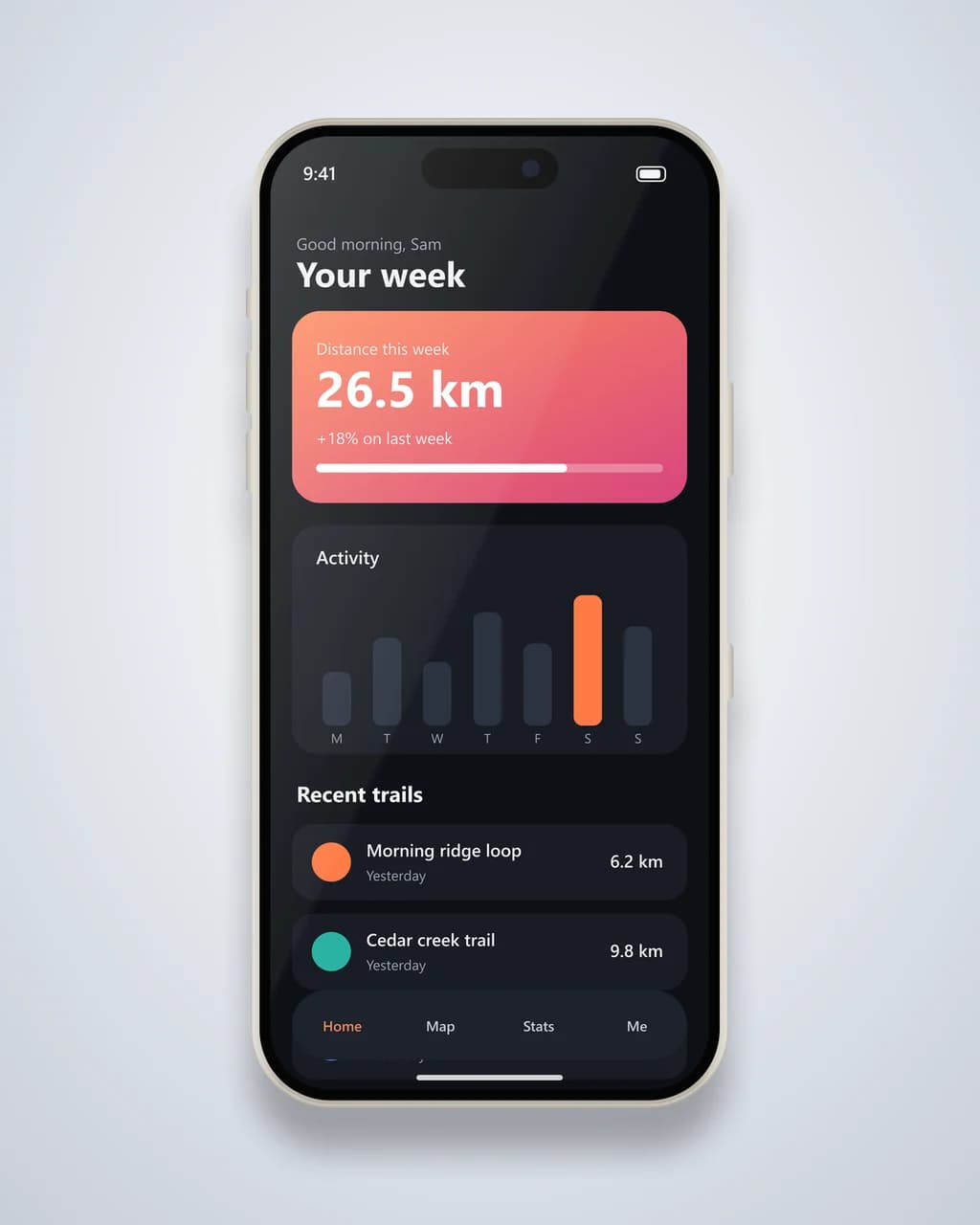
- Test input
- phone-app-dark.png (1206 x 2622 px, our own demo app)
- Output
- iPhone 16 Pro mockup, 1280 x 1600 px PNG
- Device
- iPhone 16 Pro
- Export size
- 1280 x 1600 px
- Angle
- 0° turn, 0° lean
- Background
- radial
- File size
- 295 KB
- Render time
- 209 ms
How we check exports: a script renders every device, compares the screen area with the published resolution, and we look at each frame at full size. More on the about page.
IPhone screen mockup FAQ
What size should a screenshot be for an iPhone screen mockup?
Match the device. An iPhone 16 Pro or 17 Pro capture is 1206 x 2622 pixels, while an iPhone 16 or 15 capture is 1179 x 2556.
Why does my screenshot look cropped?
Fill the screen trims anything that does not match the display ratio. Switch to Show it whole to see the full image with black around it.
Does the frame cover my status bar?
Only the Dynamic Island area, just like the real phone. The time, signal and battery icons stay visible on both sides of it.
Can I put a website screenshot on the phone screen?
Yes. Take a mobile view capture, or use Show it whole for a long page. For a desktop site, the browser mockup is a better fit.
Does the screen glare change my colors?
Only a little. It adds a faint white highlight across the top left of the screen. So leave it off for color accurate design reviews.